 Meridian One
What you need
- A Windows PC running 64-bit Windows 10 or Windows 11, with an internet connection for maps, search and routing.
- An iPhone on iOS 17 or later, and a cable that carries data, not just charge.
- Apple's USB driver. It comes with the free Apple Devices app from the Microsoft Store, or with iTunes. If it's missing, Meridian One's setup guide links you straight to it.
Install and open Meridian One
Run the installer and open Meridian One from the Start menu or the desktop shortcut. Windows asks for administrator permission each time it starts: say yes. On iOS 17 and later, Apple's developer tunnel needs it, and Meridian One can't reach the iPhone without it.
If you say no, Meridian One still opens and shows an orange banner. Press Restart as admin in that banner when you're ready.
The first time you open it, you'll pick the language for search results, accept the terms, optionally sign in, and see the setup guide.
Connect your iPhone
- Unlock your iPhone and plug it into your PC.
- If the iPhone asks Trust This Computer?, tap Trust and enter your passcode.
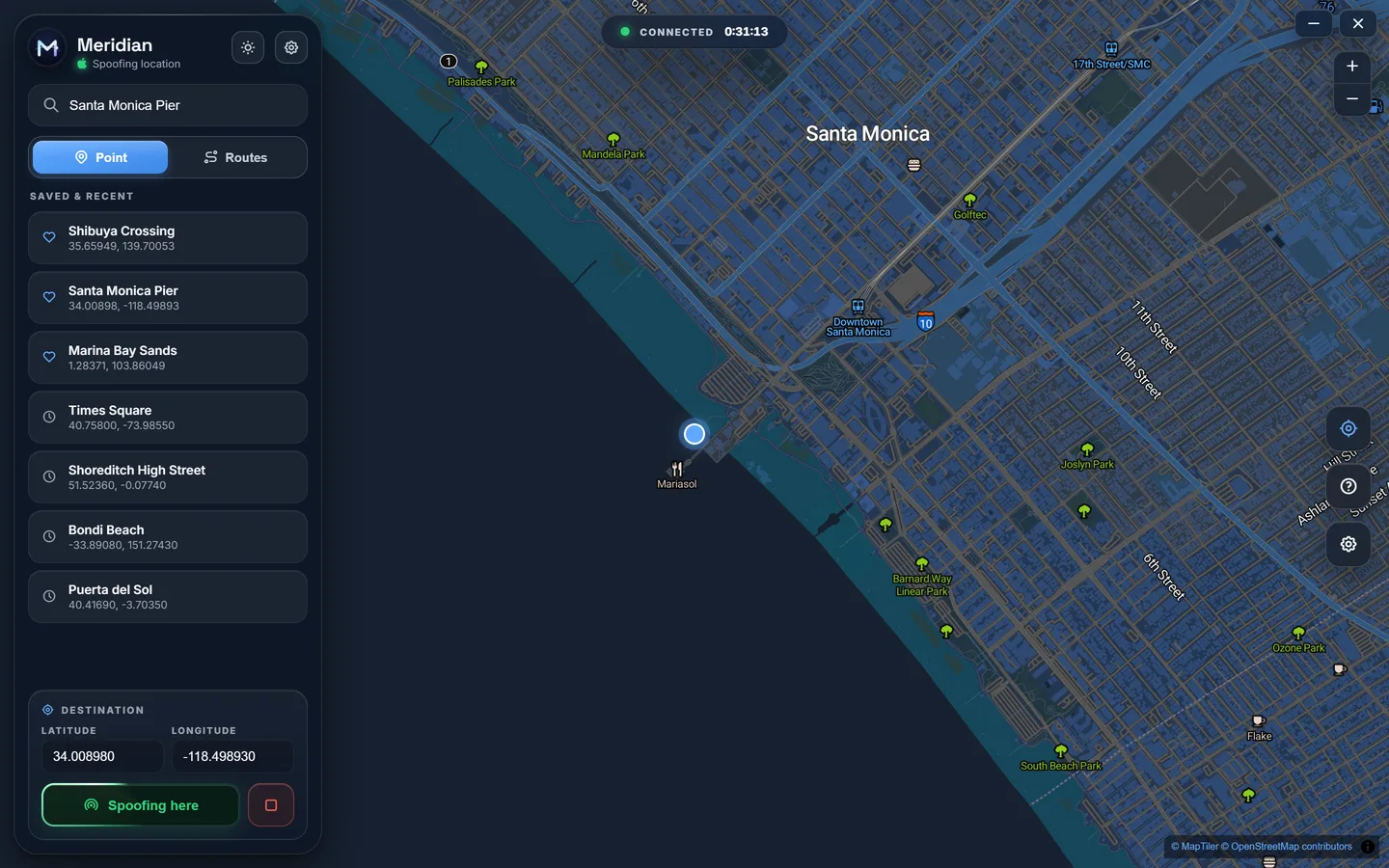
- Meridian One's sidebar header changes to show your iPhone as connected, and the status pill at the top of the map reads Connected.
Turn on Developer Mode
iOS 16 and later only let a computer simulate location when Developer Mode is on. It's a one-time switch per iPhone.
- Connect the iPhone to Meridian One once. This is what makes the option appear on the phone.
- On the iPhone open Settings, then Privacy and Security, then scroll to Developer Mode and turn it on.
- The iPhone restarts. When it's back, unlock it and tap Turn On to confirm.
Meridian One's setup guide ticks this step off as soon as it sees Developer Mode is on.
Spoof a place
- Make sure Point is selected in the sidebar.
- Search for a place, click anywhere on the map, or type a latitude and longitude under Destination.
- Press Spoof here on the place card. The first time, Meridian One opens the developer tunnel, which takes a few seconds.
- The button turns green and reads Spoofing here. Every app on the iPhone now sees that location.
To move somewhere else, pick a new place and press Move here. Tap the heart on any place card to keep it in your saved places.
Drive a route
- Switch to Routes in the sidebar.
- Click the map to add stops in order, or open Preset routes to load a ready-made city drive.
- Set the speed with the slider and choose light, medium or heavy traffic.
- Choose whether to Follow roads, Stop at traffic lights and Stay at destination.
- Press Start route. You can pause the journey and carry on later.
Use the bookmark button next to Preset routes to save the current stops as your own route.
Get your real location back
Press the red Stop button. Your iPhone returns to its real location straight away.
If Meridian One was closed unexpectedly while spoofing, restart the iPhone. That always clears a simulated location.
Trial, keys and accounts
- Free trial. One hour with every feature, once per PC. Start it from the activation screen.
- Keys. A key looks like MERIDIAN-XXXXXX-XXXXXX-XXXXXX. Enter it on the activation screen, or later from Settings, then Licence. Activating a key needs an internet connection.
- One key, one PC. A key activates one computer. To move it to a new PC, contact us.
- Offline. Meridian One checks in with our server from time to time. If it can't, it keeps working for up to 14 days, then asks you to reconnect.
- Accounts are optional. Sign in with just your email address: we send a six-digit code that lasts ten minutes. Your account shows your licence and when you joined.
Troubleshooting
Meridian One says no device is connected
Unlock the iPhone, tap Trust if asked, and try a different cable or USB port, plugged straight into the PC. Make sure the Apple Devices app or iTunes is installed, as it provides Apple's USB driver. Then unplug the iPhone and plug it back in.
There's an orange "Administrator access needed" banner
Meridian One was started without administrator permission, so it can't open the iOS 17 developer tunnel. Press Restart as admin in the banner and say yes to the Windows prompt.
I can't find Developer Mode on my iPhone
The option only appears after the iPhone has been connected to a developer tool once. Open Meridian One, connect the iPhone, wait for it to show as connected, then look again under Settings, Privacy and Security.
An app still shows my real location
Close the app fully and open it again so it asks for a fresh location. Check that Location Services is on for that app. Some apps also use your network to estimate where you are.
Search, maps or routes won't load
These come from online map services, so Meridian One needs an internet connection for them. Check your connection, then try again. Saved places still work for spoofing a known spot.
"This key is already in use on another computer"
Each key activates one PC. If you've moved to a new computer, contact us with the key and we'll move it for you.
"Can't reach Meridian One to confirm your licence"
Meridian One hasn't been able to check in for over 14 days. Connect to the internet and it will carry on as normal.
The sign-in code didn't arrive
Check your spam folder, and wait a minute before asking for another code. Codes expire after ten minutes.
Contact us
Questions, a licence to move, or something not working? Send us a message and we'll reply by email.